
Vetoes and map results
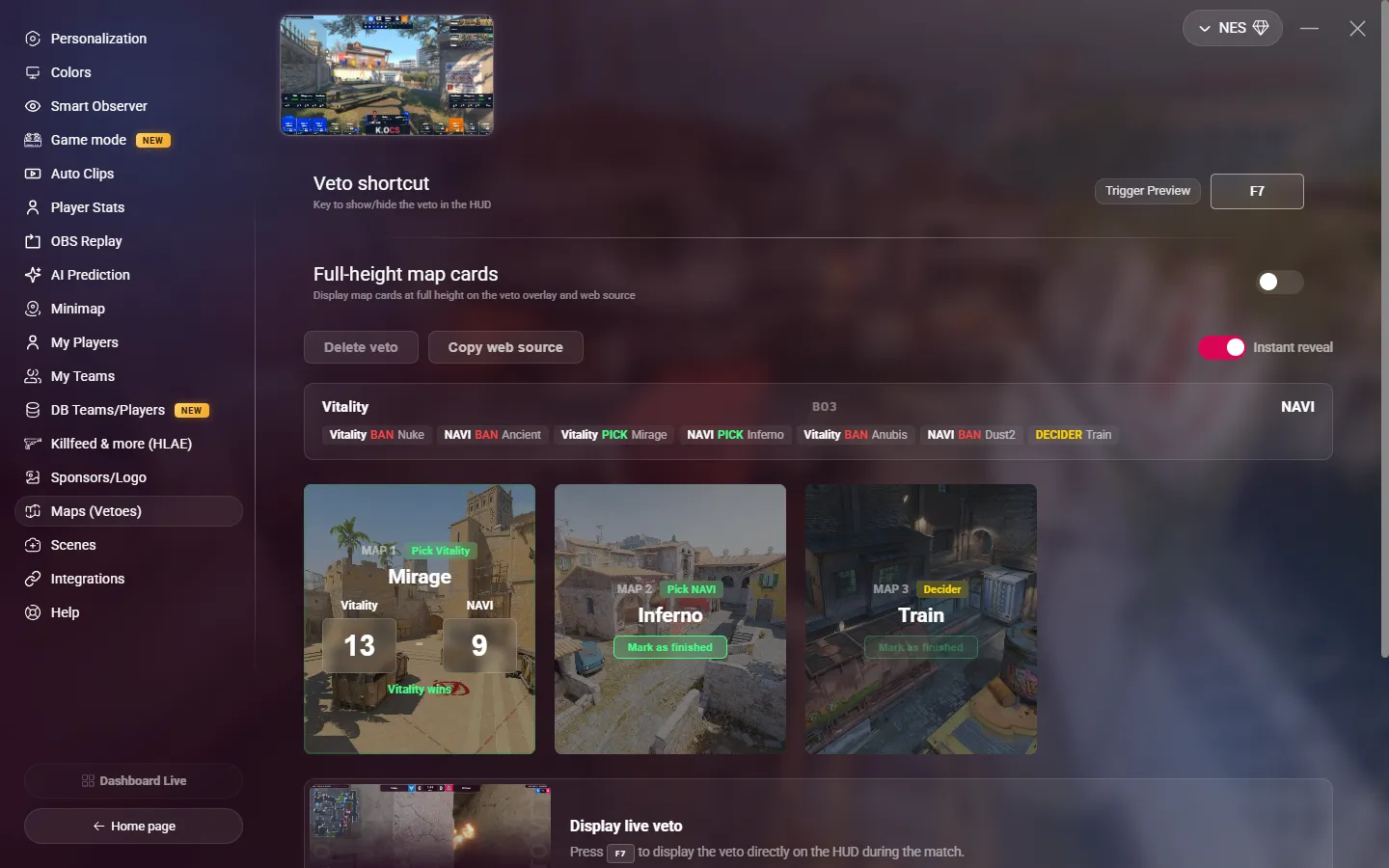
Go to OPTIONS > Maps (Vetoes). Here you set the veto of the series. MyHUD uses it for the veto panel of the HUD, the veto web source, the map results and the Intermission scene.
Create the veto
When no veto is saved, the page shows the veto picker, with two tabs.
Import a match
- Open the Import a match tab.
- Paste the link of the match:
- FACEIT:
https://www.faceit.com/en/cs2/room/… - HLTV:
https://www.hltv.org/matches/…
- FACEIT:
- Click Import.
MyHUD gets the teams, their logos, the format and all the steps of the veto. Check them, then click Apply veto.
If the teams have not finished the veto yet, wait and import again. To import automatically as soon as the veto is done, see Automation > Veto.
Manual veto
Use it for an offline match, or to follow a veto live.
- Open the Manual veto tab.
- Choose the format: BO1, BO3 or BO5.
- Choose the two teams from your saved teams, or click Enter manually to type the names.
- Choose the team that bans first.
- Check the Map pool: click a map to add or remove it. A BO3 or BO5 needs at least 5 maps.
- Click Start veto, then click the maps in the order of the veto. MyHUD knows which team plays and if it is a ban or a pick. The last map is the decider.
- When the banner reads Veto complete!, click Apply veto.
During the veto, Undo last cancels the last step and Restart starts again.
Steam Workshop maps
To add a Workshop map to the pool, paste its Steam link (https://steamcommunity.com/sharedfiles/filedetails/?id=…) and click Add. This works in the desktop app only.
What "Apply veto" does
- It fills the maps of the series with the picks and the decider, in order.
- It sets the two teams of the match.
- It sends the veto to the HUD and to the web source.
Show the veto
| Setting | Description |
|---|---|
| Veto shortcut | The key that shows or hides the veto panel on the HUD. Default: F7. It must be different from the scoreboard and stats keys. |
| Full-height map cards | Shows the map cards at full height, on the HUD and on the web source. |
| Instant reveal | On (default): all the steps show at once. Off: you reveal the steps one by one with Prev, Next, All and Reset. |
Use the step-by-step reveal to follow the veto live while the casters talk about it.
Veto web source
Click Copy web source to copy http://localhost:36364/veto, and add it in OBS as a Browser source. This source shows the veto all the time, without the shortcut and without being on a game server. MyHUD must be open.
Enter the map results
Under the veto, there is one card per map of the series.
- When a map is over, click Mark as finished on its card. You can do it only when the previous map is finished.
- Enter the score of each team.
The card then shows the winner. The HUD and the Intermission scene use these results for the series score.
Delete the veto
Click Delete veto to clear the veto and all the map results. There is no confirmation.