
Match webhooks
Go to OPTIONS > Integrations > Match webhooks. A webhook sends the game data of the match to a URL at regular intervals. Use it to post updates in a Discord channel, or to feed your own tools (website, scoreboard, bot…).
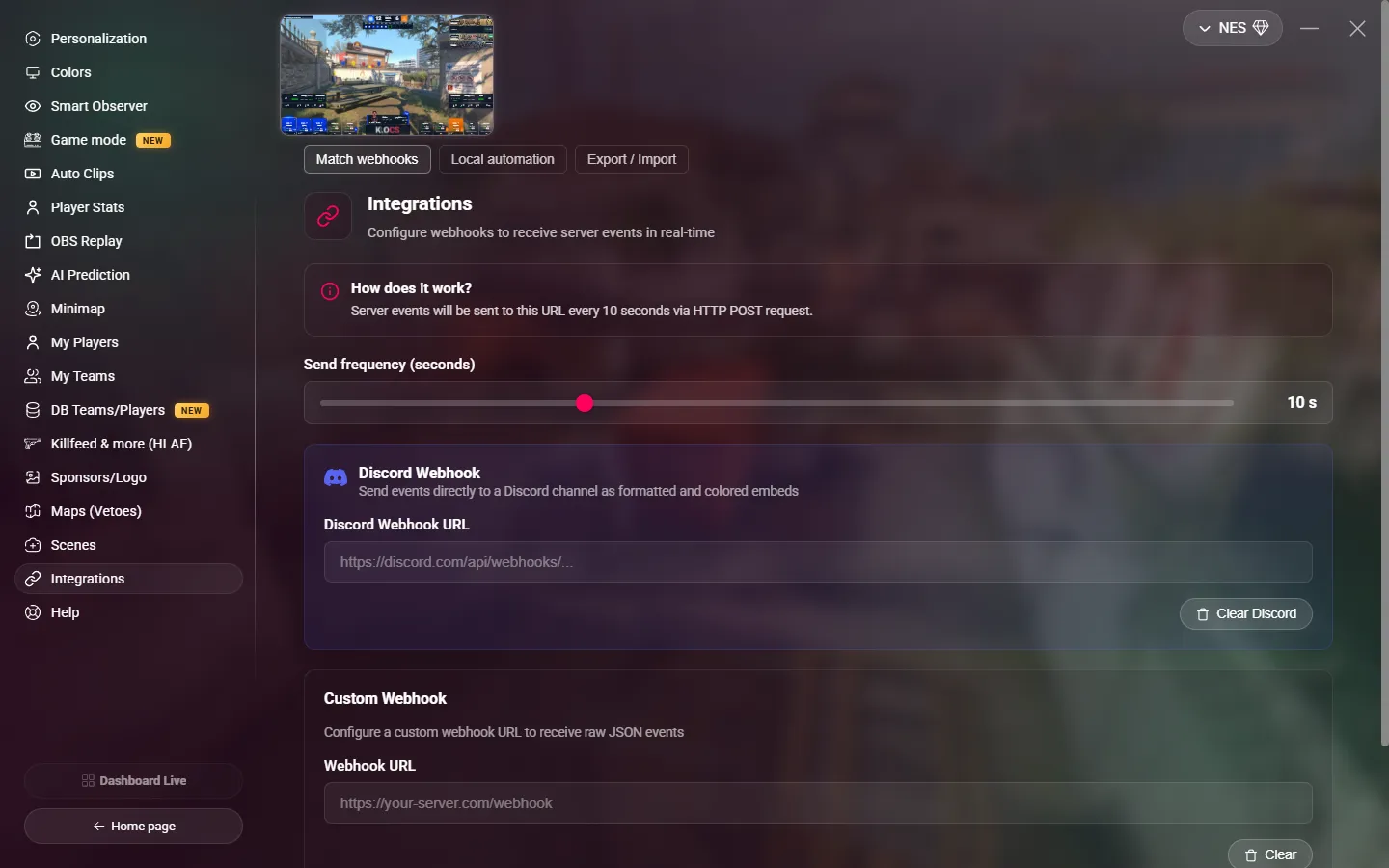
Discord webhook
MyHUD sends the events to a Discord channel, as formatted and colored messages.
- In Discord, open the settings of the channel, then Integrations > Webhooks > New Webhook.
- Click Copy Webhook URL.
- In MyHUD, paste the URL in Discord Webhook URL. It must start with
https://discord.com/api/webhooks/. - Click Save.
Custom webhook
MyHUD sends the raw data as JSON, with an HTTP POST request, to your own server.
- Paste the URL of your endpoint in Webhook URL. It must start with
http://orhttps://. - Click Save.
The data is the game state that CS2 sends to MyHUD (Game State Integration): map, score, round, players, bomb…
TIP
To check what your server receives, use a test URL from a service like webhook.site first.
Send frequency
Send frequency (seconds) sets how often MyHUD sends the data: from 2 to 30 seconds. Default: 10 seconds. A frequency of 5 seconds or less can slow down a modest PC. This setting saves by itself.
How it works
- MyHUD sends the data only while the HUD is open and receives the game data, so when you are on a server or in a demo.
- It sends the latest state at each interval. The changes between two sends are not queued.
- A webhook is active as soon as its URL is set. To stop it, click Clear or Clear Discord, then confirm.
- The URLs are saved on your MyHUD account. The data goes through the MyHUD servers before it reaches your URL.