
OBS replay
Go to OPTIONS > OBS Replay. With this feature, you press a key after a good action, and MyHUD plays the replay in full screen at the start of the next freezetime.
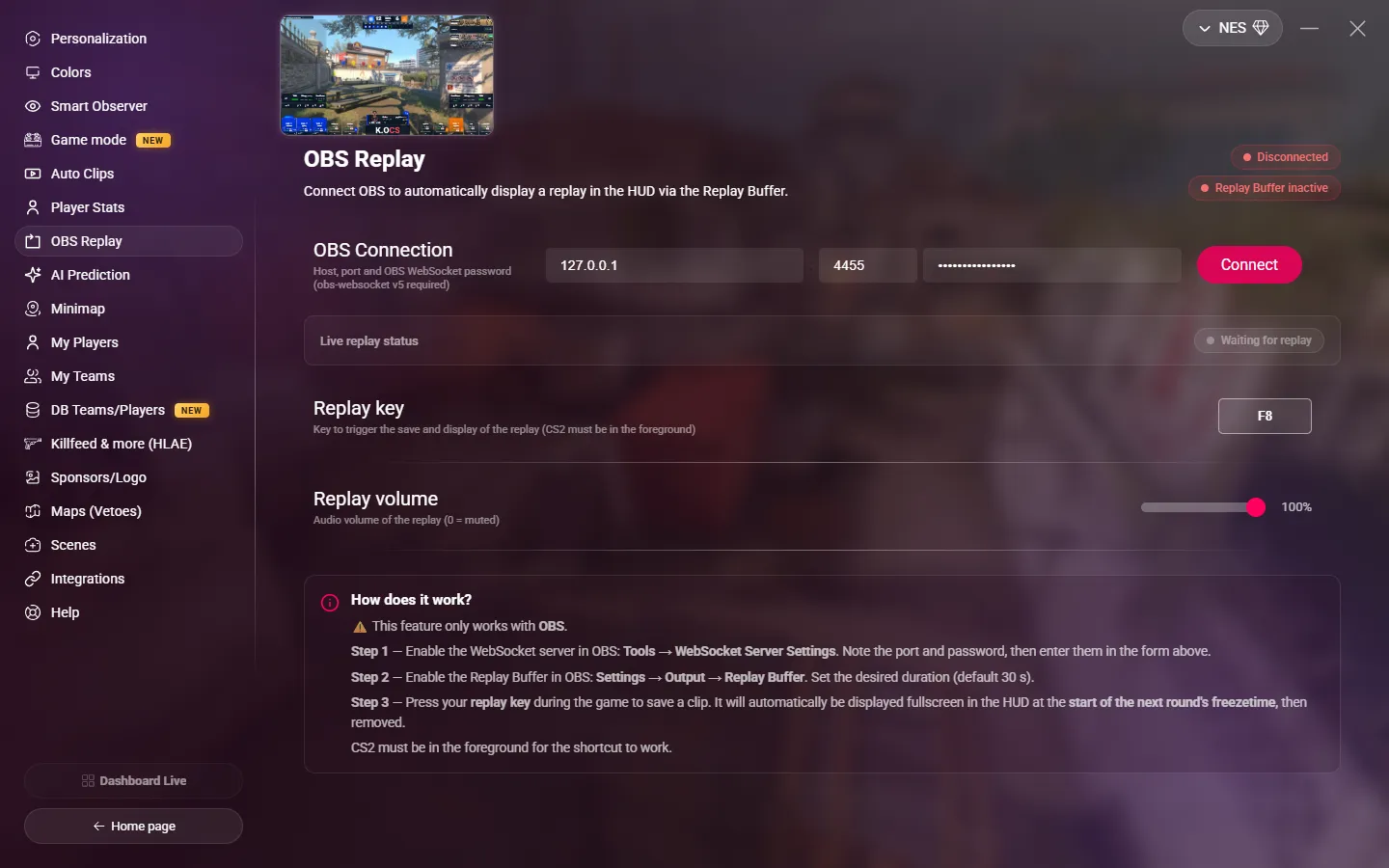
This feature works only with OBS, version 28 or later (it includes obs-websocket 5).
Set up OBS
- In OBS, open Tools > WebSocket Server Settings. Turn on the server, and note the port and the password.
- In OBS, open Settings > Output and turn on the Replay Buffer.
Connect MyHUD to OBS
- Under OBS Connection, enter the host (
localhostif OBS is on this PC), the port (default4455) and the password. - Click Connect.
The badges at the top show Connected and Replay Buffer active. When it connects, MyHUD starts the replay buffer if it is off, and sets its length to the Replay duration below.
WARNING
MyHUD does not connect to OBS by itself. After each start of MyHUD, open this page and click Connect.
Replay settings
| Setting | Description |
|---|---|
| Replay key | The key that saves and shows the replay. There is no default key: choose one that is free in CS2. It must be different from the scoreboard, veto and stats keys. |
| Replay volume | The sound volume of the replay, from 0 (muted) to 100%. |
| Replay duration | The length of the replay, from 3 to 30 seconds. Default: 5 seconds. MyHUD sets it in OBS. If you change it while connected, MyHUD restarts the replay buffer. |
During the match
- After a good action, press the replay key. CS2 must be the active window.
- MyHUD saves the replay from OBS. Live replay status shows Clip saved.
- At the start of the next freezetime, the HUD plays the clip in full screen. The status shows Broadcasting.
- At the end, MyHUD deletes the clip and the status goes back to Waiting for replay.
The replay plays on the HUD overlay window and on the HUD browser source.
You can also save a replay from a Stream Deck or a script, even when CS2 is not in front. See HUD, scenes and replay.