
Auto Clips
Go to OPTIONS > Auto Clips. While you play or cast, MyHUD finds the best plays of the match and creates clips of them on your Twitch channel.
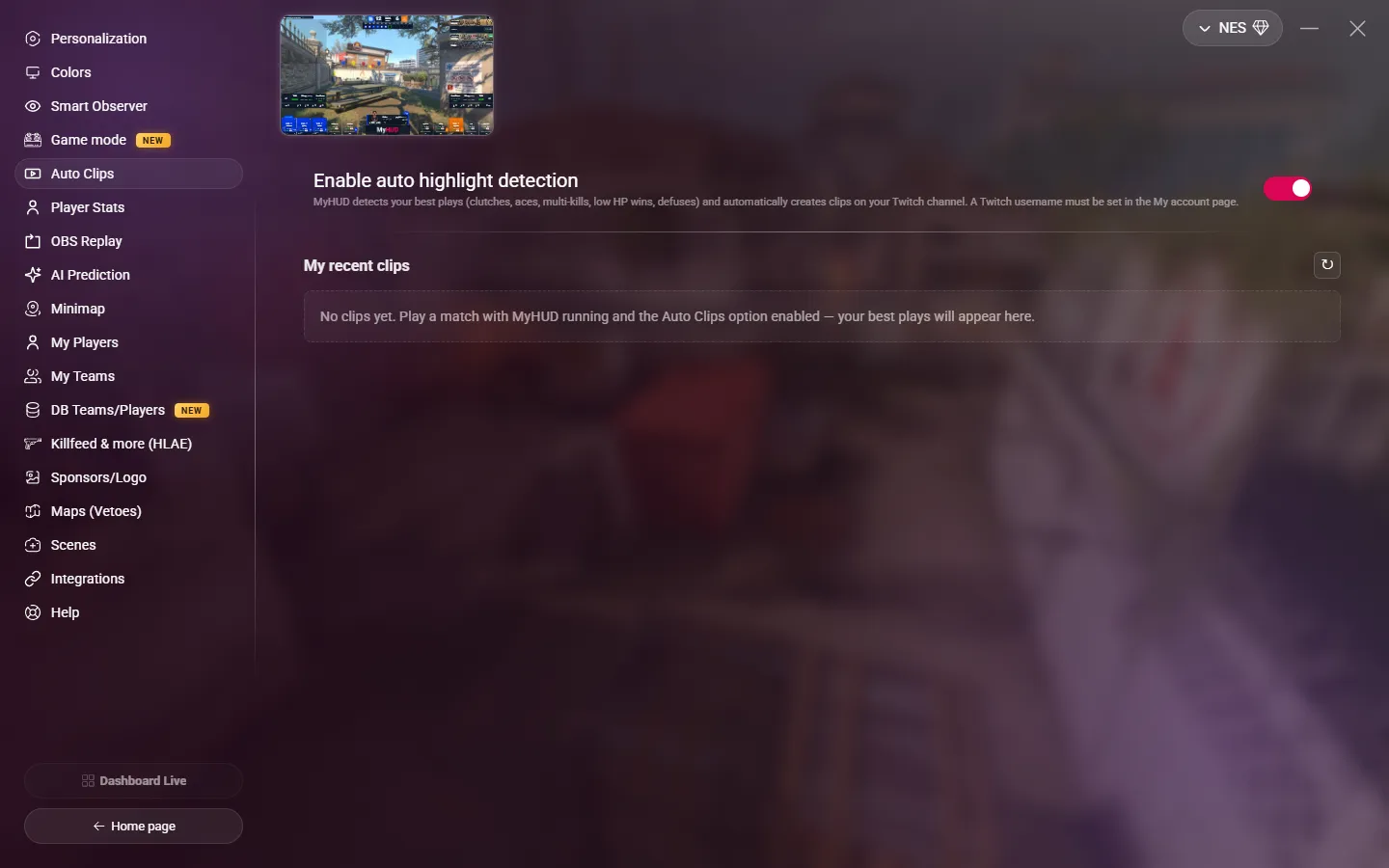
Set it up
- Go to My account (the menu with your nickname, top right) and enter your Twitch channel name. See Twitch channel.
- In Auto Clips, turn on Enable auto highlight detection.
Auto Clips needs an active subscription. If no Twitch name is set on your account, the page shows a warning.
Twitch can only create a clip of a channel that is live: stream on Twitch while you play.
What MyHUD detects
| Play | Rule |
|---|---|
| Ace | One player kills 5 opponents in the round, in 45 seconds or less. |
| Clutch | The last player alive of a team wins against 3 or more opponents. |
| Multi-kill | 3 kills in 10 seconds, or 4 kills or more in 15 seconds. |
| Fast double kill | 2 kills in 1.5 seconds. |
To avoid too many clips:
- MyHUD creates at most one clip per round, and waits at least 60 seconds between two clips.
- It requests the clip 8 seconds after the last kill, so that the clip contains the action despite the stream delay.
WARNING
The detection works only while CS2 is the active window.
My recent clips
The list shows your last clips: the type of play, the map, the round, the date and the status (In progress, Clip created, Ready, Failed…). Click a clip to open it on Twitch. Click ↻ to refresh the list.