
Colors
Go to OPTIONS > Colors. A color preset sets the background of the panels, the CT and T colors, and the rounded edges of the HUD. The scenes use the same background color.
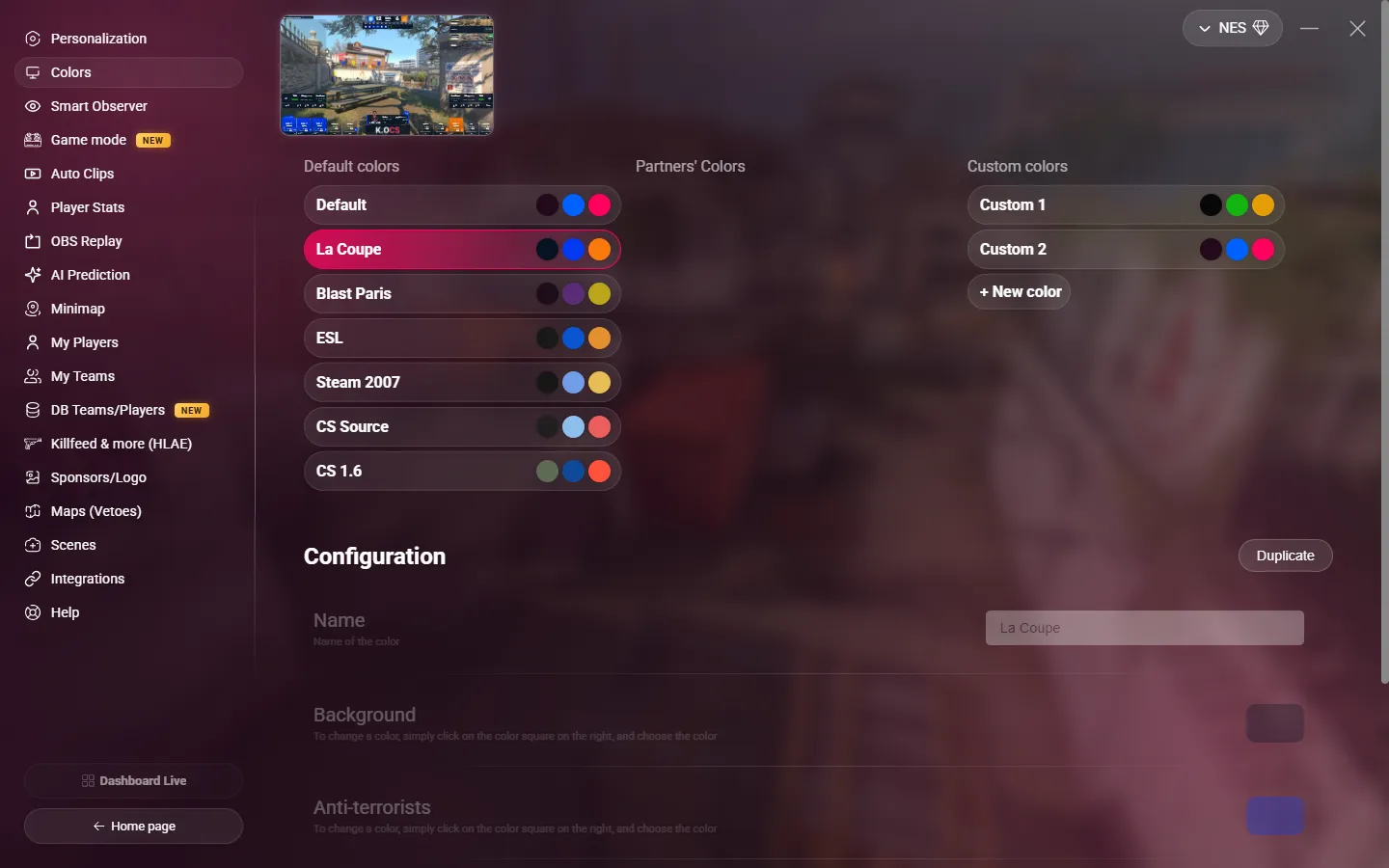
Choose a preset
Click a preset to apply it. There are three lists:
- Default colors: the presets of MyHUD.
- Partners' Colors: the presets of our partners.
- Custom colors: your own presets.
Each preset shows its three colors: background, CT and T.
You can also change the preset from a Stream Deck or a script. See Commands (set_color_preset).
Create your own colors
You can only edit your custom presets. There are two ways to create one:
- Click + New color. MyHUD creates a black preset named "Custom N".
- Select any preset, then click Duplicate. MyHUD creates an editable copy, named "… (copy)". Use this to start from a default or partner preset.
You can have up to 10 custom presets.
Edit a preset
Select a custom preset, then change the fields under Configuration:
| Field | What it changes |
|---|---|
| Name | The name of the preset. |
| Background | The background of the panels. |
| Anti-terrorists | The color of the CT side. MyHUD makes a darker shade from it. |
| Terrorists | The color of the T side. MyHUD makes a darker shade from it. |
| Rounded edges | The corner radius of the panels, from 0 to 15 px. |
Click a color square to open the color picker. The change saves when you close the picker.
Delete a preset
Select a custom preset, click Delete, then confirm. MyHUD then selects your first custom preset, or the first default preset if you have none left.