
Account and subscription
This page explains how to manage your MyHUD account: the free trial, the subscription, your invoices and the change of PC.
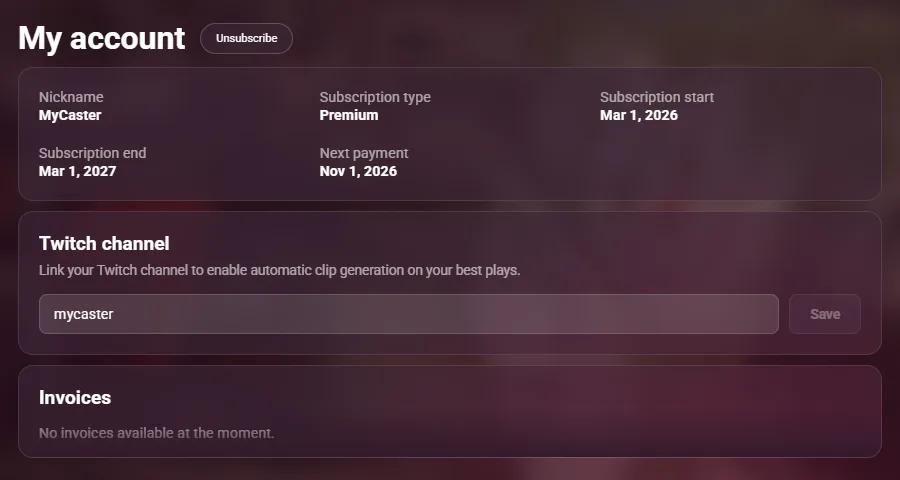
To open your account, click your nickname at the top right, then My account. This menu also has the language of the app and Disconnect.
Free trial
A new account can use MyHUD free for 48 hours, without a credit card. The home page shows the time that is left.
When the trial ends, the HUD closes and the OPEN HUD and OPTIONS buttons disappear. To continue, click Activate license on the home page and choose an offer.
Subscription
Choose an offer
| Offer | Price | Billing |
|---|---|---|
| Monthly | 9.99 € | Each month |
| Trimestrial | 29.97 € | Every 3 months |
| Semestrial | 53.99 € (−10%) | Every 6 months |
| Annual | 94.99 € (−20%) | Each year |
Click Choose this offer. The payment page opens in your browser. When the payment is complete, go back to MyHUD: the home page updates by itself.
All the offers unlock the same features. Only the billing period changes.
Follow your subscription
The My account page shows:
| Field | Meaning |
|---|---|
| Subscription type | Premium, Free trial, Finished premium or No subscription. |
| Subscription start | The date of your first payment. |
| Subscription end | The date when the subscription stops, if it is set. |
| Next payment | The date of the next renewal. |
A diamond next to your nickname (top right) shows that your subscription is active.
Unsubscribe
- On My account, click Unsubscribe.
- Confirm.
The subscription stays active until the end of the period that you paid. After this date, MyHUD does not charge you again.
Invoices
The Invoices section lists your invoices, from the most recent. Click Download to open the PDF of a paid invoice in your browser.
An invoice with the Draft status is not final yet. Come back later to download it.
Twitch channel
Auto Clips creates the clips on the Twitch channel of your account.
- On My account, enter your Twitch handle in Twitch channel.
- Click Save.
To remove the channel, empty the field and click Save.
Use MyHUD on another PC
Your subscription works on one PC at a time. When you sign in on a new PC, or after you reinstall Windows, MyHUD shows your old and new PC IDs.
- Click Validate to move the subscription to this PC. The other PCs lose access to your account.
- After a transfer, you must wait several days before the next one. If you sign in on another PC during this time, MyHUD shows how long you must wait.
If you think that a transfer is blocked by mistake, contact us on Discord.
Forgot password
- On the sign-in screen, click Forgot password?.
- Enter your email and click Reset.
- Open the email from MyHUD and click the link. Keep MyHUD open on this screen: the password form appears in the app when you click the link.
- Enter your new password twice and click Reset.
The password must have at least 5 characters, with letters, numbers and at least one special character.
Troubleshooting
| Problem | What to do |
|---|---|
| "A subscription is already active on this computer" when you register | This PC is already linked to another account. Sign in with that account, or ask on Discord. |
| "Invalid Twitch handle" | Enter only the name of the channel, without twitch.tv/. |
| The home page still shows the offers after the payment | Wait a few seconds. If nothing changes, restart MyHUD. |