
Teams and players
By default, the HUD shows the names of the players in the game and the default CT and T pictures. You can replace them with nicknames, pictures, flags and team logos.
MyHUD uses three sources, in this order:
- Your players (My Players): what you set for a player always wins.
- Your teams (My Teams): the name and logo of an active team.
- The Pro database (DB Teams/Players): pro players and teams that MyHUD knows.
If no source knows a player, the HUD shows the name from the game and the default CT or T picture.
Players
Go to OPTIONS > My Players.
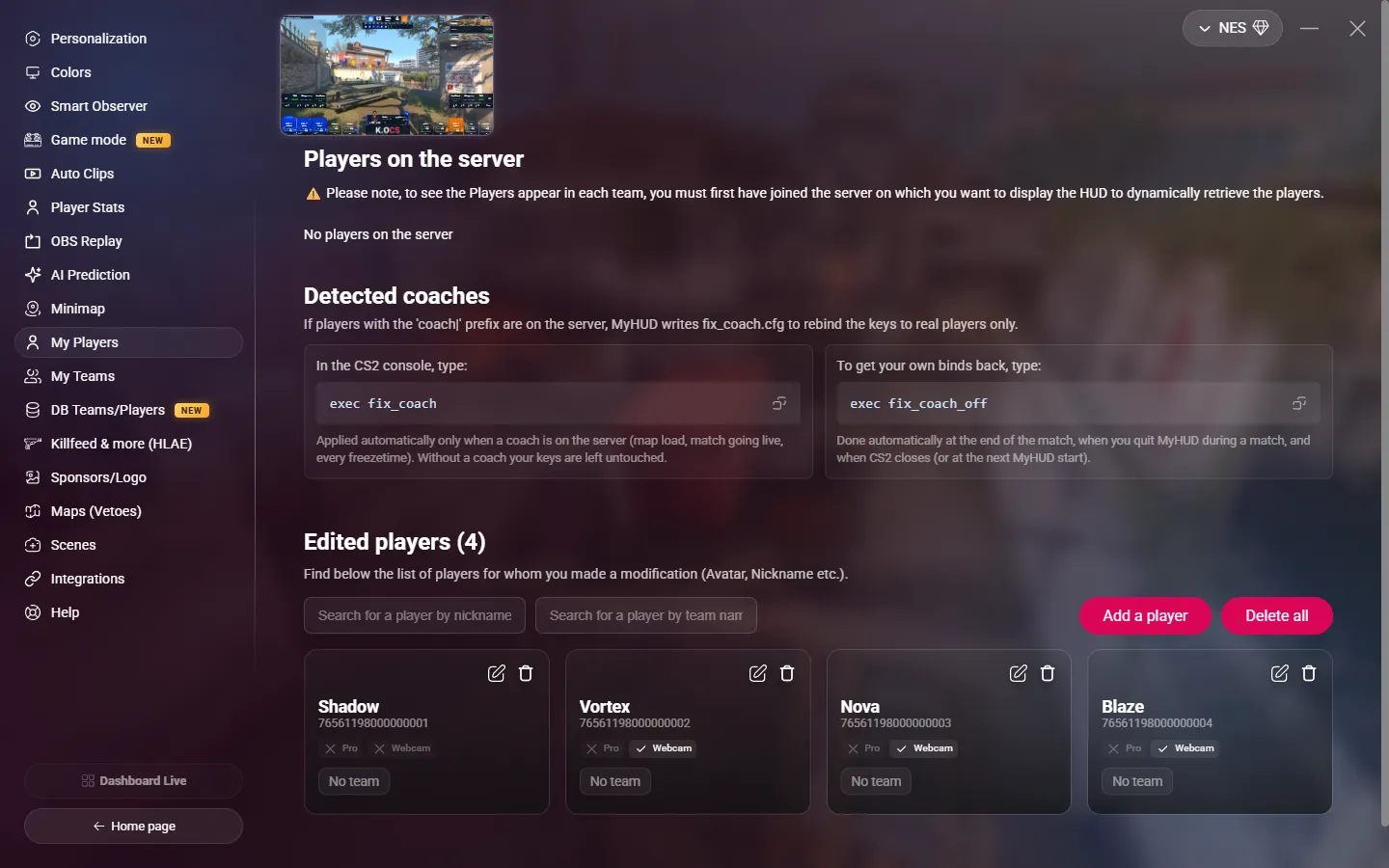
Players on the server
When you are on the server, the list shows the players of both teams. For each player:
- Personalize opens the player form, with the Steam ID already filled in. After you save, the button reads To modify.
- Hide removes the player from the HUD and the scoreboard. Display shows them again.
The list is empty until you join the server and both teams have players.
Add or edit a player
Click Personalize next to a player on the server, or Add a player for a player who is not on the server.
| Field | Description |
|---|---|
| Avatar | A link to the picture (.png, .jpg, .jpeg or .webp), or a file on your PC: click Choose a file or drop the file on the field. |
| Bust image (pro)? | Turn it on if the picture is a pro bust photo. The HUD shows it bigger. |
| Country | The flag shown next to the player. |
| Nickname | Required, 32 characters max. |
| Steam ID | Required: the 17-digit SteamID64 (7656…). You cannot change it later. |
| Webcam | A webcam link, for example a VDO.ninja view link. The HUD shows it for the observed player and in 1v1. |
| Teams | The team of the player, from your saved teams. |
Then click Add player or Edit & Save.
TIP
Add the players first, then the teams: a team roster can only contain saved players.
The list Edited players shows all your saved players. You can search by nickname or by team name, edit or delete a player, or delete all of them.
Coaches
If a player with the coach| prefix is on the server, MyHUD writes a fix_coach.cfg file so that the observer keys select real players only. The Detected coaches block shows the commands:
exec fix_coach: applies the fix. MyHUD does it for you when a coach is on the server.exec fix_coach_off: gives your own binds back. MyHUD does it for you at the end of the match.
Teams
Go to OPTIONS > My Teams.
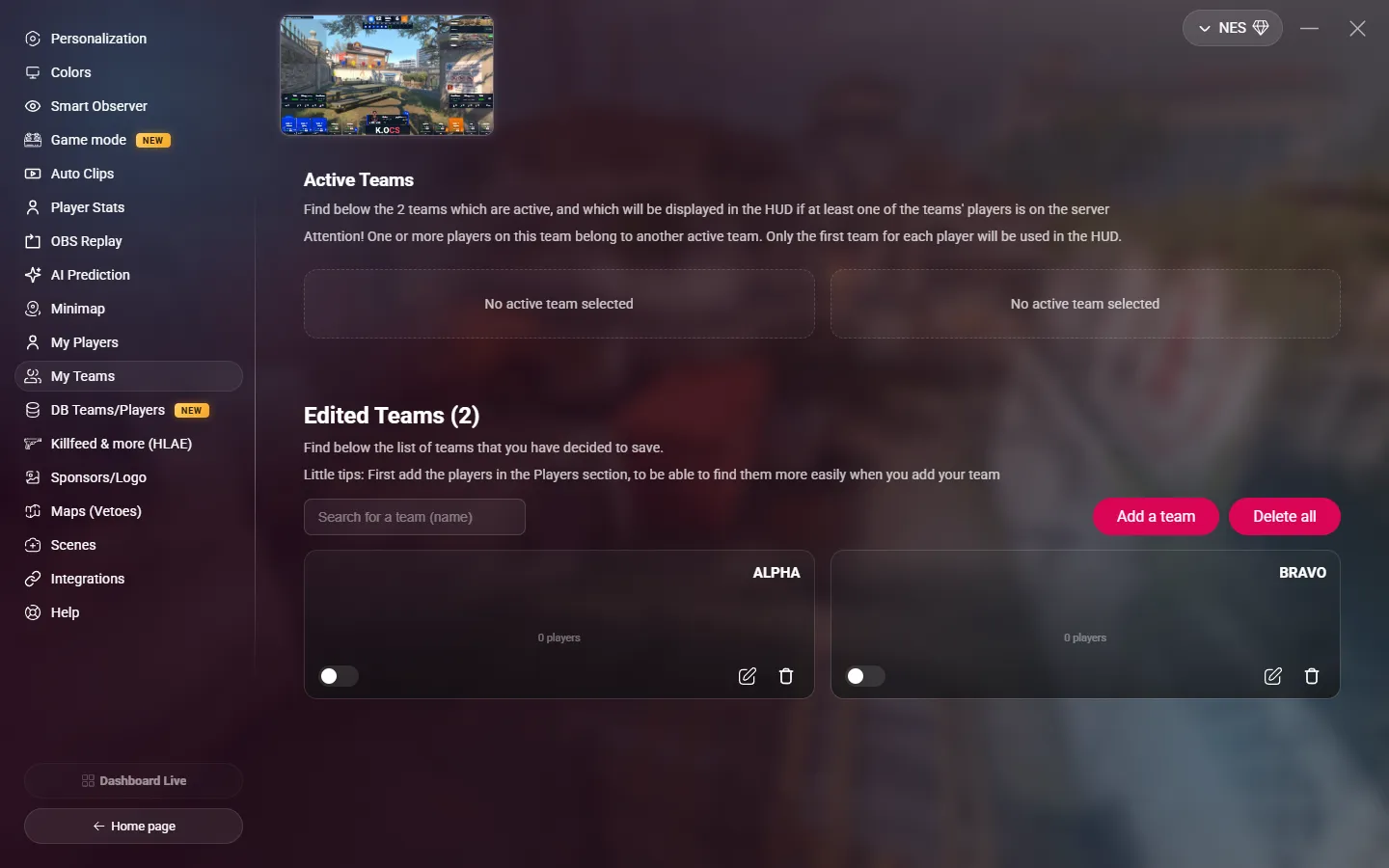
Create a team
- Click Add a team.
- Add the logo (a link, or a file on your PC) and the Team Name (required, 32 characters max).
- Under Roster, click Add a player and choose players from your saved players.
- Save.
Active teams
The HUD uses only active teams, and you can have two active teams at a time. Turn on the toggle of a team card to make it active. The two active teams appear in the Active Teams block.
MyHUD finds the team of each side by its players, not by its name: when a player of an active team is on the CT or T side, the HUD shows the name and logo of that team for this side.
WARNING
If a player is in both active teams, MyHUD uses only the first team.
Before each match, activate the two teams that play, and turn off the others.
Pro database
Go to OPTIONS > DB Teams/Players.
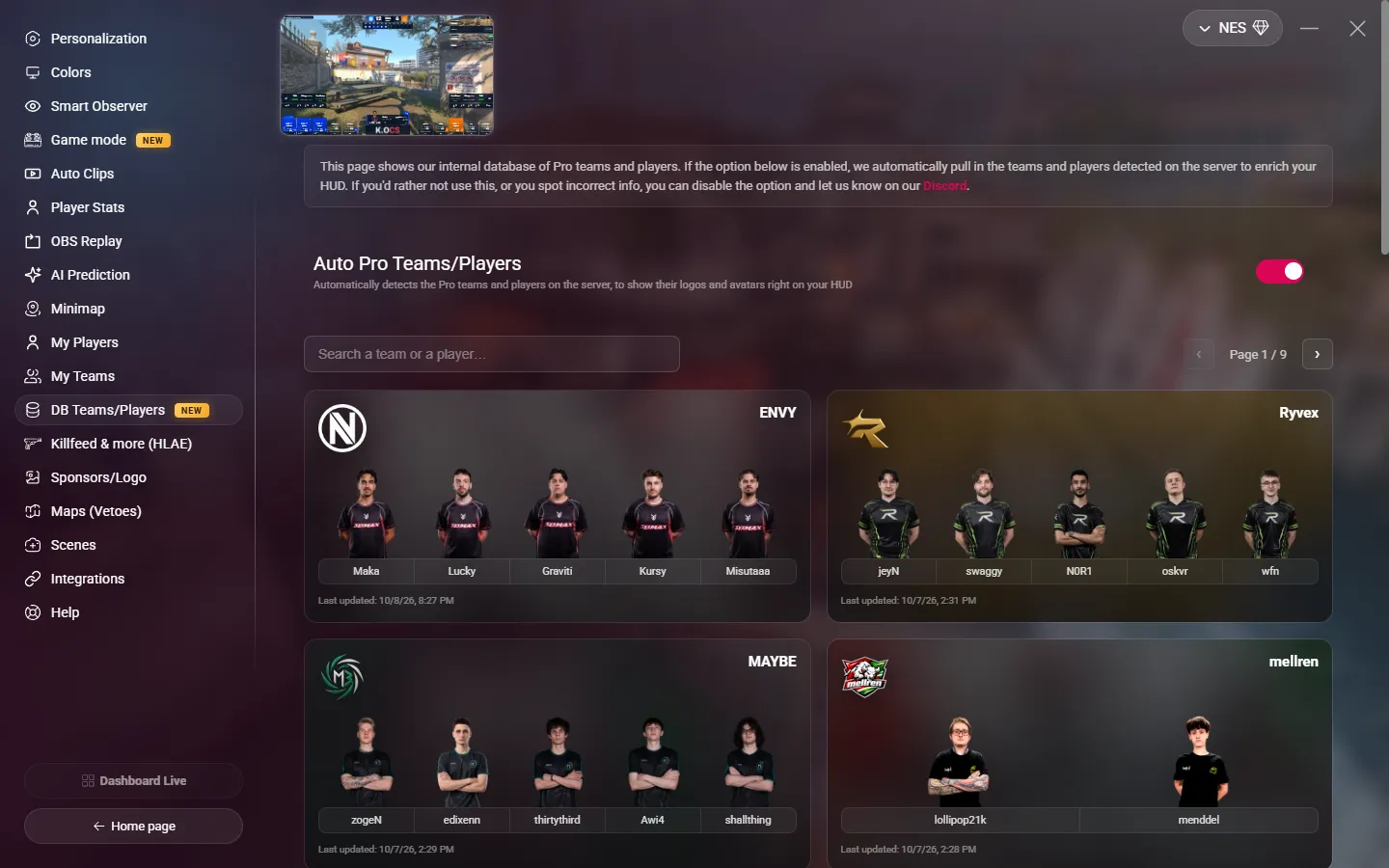
With Auto Pro Teams/Players on (the default), MyHUD looks up each player of the server who is not in your players. If the player is in our Pro database, the HUD shows their nickname, picture and team logo, with no setup.
Below the toggle, you can search the database by team or player.
If you see wrong information, or if you prefer your own data only, turn the option off and tell us on Discord. Your own players always take priority over the database.